 Cloudera
Hacking The Jetson
Updated:
 Danger! This is a Work in Progress article. Content and code are updating frequently until this notice is removed.
I bought an NVIDIA Jetson Orin Nano developer kit, dropped it into a Yahboom CubeNano case, and then spent a few weeks turning it into something between a desk toy and a real edge-AI node. It runs a MiNiFi C++ agent that reports into Cloudera Edge Flow Manager and produces to Kafka. It has a tiny OLED on the case that I hacked into a sci-fi strobe. It falls into a Matrix digital-rain screensaver when it’s idle. It answers HTTP requests that launch things on its own physical display. And it runs a real GPU vision model behind an HTTP endpoint, classifying images in single-digit milliseconds. This post is the whole build — the box, the hacks, the edge-AI plumbing, what broke, and what I’d do next. Every path, port, bus number, and I2C address below is real and taken off the live device (hostname tunastreet, an ARM Cortex-A78AE / Ampere Jetson Orin Nano on Ubuntu 24.04, JetPack/L4T R39).
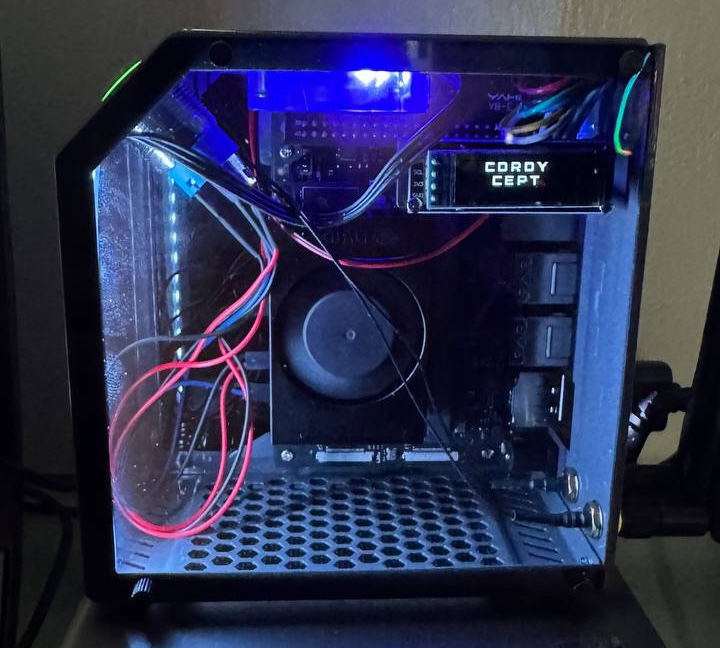
This is the build post. The deep enterprise integration — persisted EFM on Kubernetes, MiNiFi binaries for Windows/Linux/Jetson, the full CSO stack next to it, model metrics into Prometheus — lives in its own companion writeups linked at the end. Here I’m showing you the box and everything I bolted onto it.
The hardware
Three parts stack up on my desk:
- NVIDIA Jetson Orin Nano Super Developer Kit — the compute, and the reason this whole thing is worth doing. 67 TOPS (Sparse INT8), a 1024-core Ampere GPU with 32 Tensor Cores, a 6-core Arm Cortex-A78AE CPU up to 1.7 GHz, 8GB of 128-bit LPDDR5 at 102 GB/s, in a 7W–25W envelope. NVIDIA lists it at $249. That’s a data-center-shaped AI stack on a board that draws less than a light bulb — plenty to run MiNiFi, drive a display, and front a nearby inference server at the same time.
- Jetson MINI Cube Nano case — the case (supports Jetson Nano / Orin Nano / Orin NX / Xavier NX / TX2 NX), with a 40-pin passthrough, a fan, and a small 128×32 SSD1306 OLED on the header. The OLED is the thing that makes this build fun.
- Waveshare Environment Sensor module — an I2C sensor board (ambient light, temp/humidity/pressure, 9-DOF IMU, UV, VOC) with its own 1.3” OLED, designed to stack on the Jetson Nano 40-pin header. It nearly didn’t survive the build — its OLED looked stone dead across two boards — and the fight to bring it back is Hack #4 below.
 Confirmed parts. Jetson Orin Nano Super Developer Kit — NVIDIA, ASIN B0BZJTQ5YP, $249, 67 TOPS. Jetson MINI Cube Nano case — ASIN B0GDFTZ64S. Waveshare Environment Sensors Module for Jetson Nano (I2C, 1.3” OLED) — ASIN B08YDBKLDV, also documented on the Waveshare wiki.
Hack #1 — the CubeNano OLED, from stats display to CORDY CEPT strobe
The CubeNano case puts a 128×32 SSD1306 OLED on the 40-pin header, driven over I2C at /dev/i2c-7, address 0x3c. Yahboom ships a stats loop for it. Mine lives in ~/CubeNano/oled.py: it auto-probes I2C buses [1, 0, 7, 8] until it finds the panel, then writes four lines — CPU%, time, RAM, disk, IP — refreshing about 10× a second, managed by a systemd unit (yahboom_oled.service, enabled so it survives reboot).
That’s the baseline. On top of it I built a second display mode: a full-screen black/white strobe at 0.25s intervals with bold, letter-spaced sci-fi text reading C O R D Y / C E P T in the Orbitron font. That’s ~/CubeNano/oled_strobe.py.
Symptom: an OS update wiped the strobe
I ran an apt batch that pulled a glibc upgrade, which needs a reboot to take. Rebooted — and the OLED came back showing the plain CPU/RAM/IP stats screen, not my CORDY strobe.
First instinct is “did I kill the panel?” I ruled out hardware in 30 seconds: i2cdetect -y -r 7 still showed 0x3c acking, and a live Adafruit_SSD1306.begin() against bus 7 succeeded with no exceptions. The panel and bus were never the problem.
Diagnosis: I never made the strobe survive a reboot
yahboom_oled.service is the only thing wired into systemd, and it runs oled.py (the stats display). oled_strobe.py I had only ever started by hand with python3 oled_strobe.py &. A bare & backgrounds a process in the current shell’s process group — which gets torn down when that shell exits. The reboot killed it, and only the systemd-managed stats display came back. Nothing to do with glibc; any reboot would have done it.
Fix: detach it, then give it its own systemd unit
Immediate fix — kill the stats process and start the strobe fully detached so it survives the shell:
pkill -f "python3 /home/tunastreet/CubeNano/oled.py"
cd ~/CubeNano
setsid nohup python3 -u oled_strobe.py > /tmp/oled_strobe.log 2>&1 < /dev/null &
setsid is the part that matters — it puts the process in its own session so it doesn’t die with the launching shell. But that’s still just a background process; the next reboot blanks it again. The real fix is a dedicated systemd unit and retiring the stats one so they can’t fight over the same OLED on boot.
~/CubeNano/cordy_oled.service:
[Unit]
Description=cordy_oled strobe service
After=multi-user.target

[Service]
Type=idle
User=tunastreet
ExecStart=/bin/sh -c "python3 /home/tunastreet/CubeNano/oled_strobe.py"
WorkingDirectory=/home/tunastreet
Restart=on-failure
RestartSec=2

[Install]
WantedBy=multi-user.target
Install it and disable the stats unit in one pass (~/CubeNano/install_cordy_oled_service.sh):
sudo systemctl disable --now yahboom_oled.service
pkill -f oled_strobe.py
sudo cp /home/tunastreet/CubeNano/cordy_oled.service /etc/systemd/system/cordy_oled.service
sudo systemctl daemon-reload
sudo systemctl enable --now cordy_oled.service
To flip back to the stats display:
sudo systemctl disable --now cordy_oled.service
sudo systemctl enable --now yahboom_oled.service
I keep a few other renders in ~/CubeNano/ for the same panel: oled_cordy.py (static two-line CORDY/CEPT), oled_cool.py (a typewriter-reveal “WAKE UP… THE MATRIX HAS YOU…” boot message), and oled_basic_test.py (raw black/white/black sanity check to confirm the panel is healthy).
Don’t persist a display process with a bare &. It looks alive right up until the next reboot or logout, then it’s gone with no error anywhere to point at. If you want it to survive, it needs setsid (for the current session) and ultimately a systemd unit (for boot). And before you assume a blanked OLED is dead hardware, check whether the right process is even running — i2cdetect plus a live begin() is 30 seconds that saves you pulling the board off the header.

sudo needs a real TTY. Every install step here is wrapped in a bash ~/CubeNano/install_*.sh one-liner on purpose — the automation driving this box can’t type a sudo password into an interactive prompt, so the sudo calls get committed into a script and run in one shot. Same pattern shows up everywhere on this device.
Hack #2 — a Matrix digital-rain screensaver, done without xscreensaver
When the Jetson sits idle for two minutes, its monitor falls into a full-screen Matrix-style falling-code effect (binary 0/1, canvas-based, with a small glowing clock in the corner). It’s a self-contained HTML file rendered by Chromium in kiosk mode, driven by a standalone idle-watcher — deliberately not xscreensaver.
Why not xscreensaver
I started with xscreensaver’s programs: hack mechanism to launch Chromium. It was janky. xscreensaver hacks are supposed to render into a window ID that xscreensaver hands them so they stay correctly stacked. Chromium’s kiosk mode always opens its own independent top-level window, so it rendered underneath xscreensaver’s black saver window. The screen just looked black, and moving the mouse flashed the scene for a moment right before xscreensaver killed the child.
So I ditched the hack model. xscreensaver is stopped, ~/.xscreensaver has mode: off, and a systemd user service polls real idle time and manages Chromium directly — no competing window ever gets created.
The pieces
-
~/matrix-screensaver.html— the scene, self-contained, no network calls, works as afile://URL. -
~/.local/bin/lofi-idle-watcher.sh— pollsxprintidle; once idle crosses the threshold it launches Chromium kiosk at the HTML file and force-fullscreens the window. Kills Chromium the moment activity resumes. -
~/.config/systemd/user/lofi-idle-watcher.service— runs the watcher as a persistent user service; inheritsDISPLAY/XAUTHORITYfrom the systemd user environment.
Current idle threshold is 2 minutes (IDLE_THRESHOLD_MS in the watcher).
The rain itself is written to be cheap on the Nano’s GPU. An early version redrew a 90-character trail every frame across ~200 columns — roughly 15k fillText calls per frame — and visibly bogged down. The current version draws exactly one new glyph per column per frame and lets a very faint semi-transparent black overlay (rgba(0,0,0,0.035)) fade the trail. That’s the actual technique behind the original effect, and it’s roughly 60× cheaper per frame while still producing a long, slow-fading trail. Runs at a fixed 24 FPS via setInterval (not requestAnimationFrame) to keep the draw rate cheap and independent of monitor refresh.
Three failure modes worth knowing (all fixed, all verified)
Chromium under kiosk mode fought me three separate ways, and every fix is worth carrying to any Chromium-kiosk build:
-
Silent failure to launch — no window, no error. Chromium was using its default shared snap profile. Every kill was an abrupt
pkill, which could leave a staleSingletonLockpointing at a dead PID. On the next launch Chromium tried to hand the URL to what it thought was a live instance over a dead socket, failed silently, and just exited. Fix: give the kiosk its own isolated--user-data-dir(~/snap/chromium/common/lofi-screensaver-profile) and clear staleSingleton*files before each launch. The profile dir has to live somewhere the snap confinement can write —~/snap/chromium/common/works,/run/user/1000/does not (Chromium throws a “Failed To Create Data Directory” dialog storm and silently falls back to the shared profile). -
Stacked/duplicate windows.
stop_saver()matched the kill on the target URL (pkill -f matrix-screensaver.html) — but that string only appears in the top-level browser process’s argv, not its zygote/renderer/gpu children. So a kill removed only the parent; the children and their window survived, and the next tick launched a second instance on top. Fix: match/kill on--user-data-dir=$PROFILE_DIRinstead — every process in Chromium’s tree carries that flag, so onepkill -ftakes down the whole tree. -
Window comes up the wrong size. Chromium’s own
--kiosk/--start-fullscreen/--window-position=0,0flags don’t reliably get Mutter to grant real X11 fullscreen — the window came up at, say,1854×1011at80,118instead of1920×1080at0,0. Fix: after launch, poll for the window and force_NET_WM_STATE_FULLSCREENwithwmctrl. The poll has to be patient — right after a reboot, or with apt/snap updates running, Chromium can take 7+ seconds to create its window, well past a naive 5-second timeout. I extended the poll loop to up to a minute (240 × 0.25s).
To tweak it (glyph size/speed/color, or the idle threshold) edit the HTML or the watcher script, then:
systemctl --user restart lofi-idle-watcher.service
The edge-AI plumbing — MiNiFi C++ + Cloudera EFM + Kafka
This is where the Jetson stops being a toy. It runs a MiNiFi C++ agent (nifi-minifi-cpp-1.26.02, agent class NvidiaNano) that reports into a remote Cloudera Edge Flow Manager for centralized flow management, and produces data to Kafka. EFM and Kafka run on my Windows desktop across the LAN; the Jetson enrolls over the network and shows up in the EFM UI as a manageable agent.
Install layout on the device:
- Install dir:
/home/tunastreet/nifi-minifi-cpp-1.26.02, binarybin/minifi - Managed by systemd (
minifi.service, enabled, starts on boot) - Config in
conf/:minifi.properties(C2/EFM settings),minifi.properties.d/drop-ins, andconfig.yml(the actual flow definition)
EFM (C2) connection:
- Server:
http://192.168.1.121:10090/efm/api(heartbeat at.../c2-protocol/heartbeat) - Agent class
NvidiaNano, heartbeat period 5000ms - Kafka bootstrap
192.168.1.121:31623, producer client idminifi-agent-nvidia
Health check from the device:
systemctl status minifi --no-pager
tail -f /home/tunastreet/nifi-minifi-cpp-1.26.02/logs/minifi-app.log | grep -i "heartbeat\|kafka"

# port reachability, no nc needed
timeout 3 bash -c "cat < /dev/null > /dev/tcp/192.168.1.121/10090" && echo open || echo closed
timeout 3 bash -c "cat < /dev/null > /dev/tcp/192.168.1.121/31623" && echo open || echo closed
This build carries a few extra C++ extensions staged into it — execute-process, lua-script, python-script, opc, and llamacpp — which pushes it to 79 processors versus the stock 74. The python-script and llamacpp extensions are the ones that make “AI at the edge” real: you can run Python inside the agent, or point it at a local model. Hack #3 below is where that stops being a promise — a real MobileNetV2 engine doing GPU classification at 4 ms, reached three different ways.
A remote EFM/Kafka restart has a recognizable signature — don’t chase it. When I restart the stack on the Windows side, the Jetson’s minifi-app.log fills with Kafka Connection refused on every broker, sometimes with a "verify that security.protocol is correctly configured" hint. That hint is noise from the broker bouncing, not an auth change. It settles on its own within ~15–20 minutes of the ports reopening. No Jetson-side action needed.
For the full install story — persisted EFM on Kubernetes, staging the Windows/Linux/Jetson binaries, the WSL2 mirrored-vs-NAT networking that lets the Jetson reach EFM across the LAN — see the companion posts linked at the end. Here I care about what the agent does.
Python over HTTP — making the edge box do things on command
The most fun endpoint on this Jetson: POST :8081/streamChatListener with a body of {"streamer":"<name>"} opens Chromium to https://www.twitch.tv/<name> on the Jetson’s physical display, fullscreen. It’s a MiNiFi ListenHTTP processor feeding an ExecuteScript that runs launch_stream.py. Simple idea. It took four stacked bugs to get right, and each one is a lesson.
Bug 1 — ListenHTTP dropped the request before Python ever saw it
The endpoint returned an HTTP response but Chromium never opened. The log had the answer:
[warning] ListenHTTP buffer is NOT full 1/5, 'POST' request for
'/streamChatListener' uri was dropped
I’d copy-configured the listener from another endpoint with Batch Size: 5 / Buffer Size: 5. MiNiFi won’t turn a request into a FlowFile until the buffer fills — so a single test POST just sat there and got dropped. The endpoint I copied from “worked” only because it gets hammered with back-to-back requests that fill the buffer. Fix: Batch Size: 1 / Buffer Size: 1, pushed via EFM.
Bug 2 — an XAUTHORITY placeholder that was never filled in
The script had a literal, angle-brackets-and-all placeholder:
env["XAUTHORITY"] = "/home/<jetson-desktop-user>/.Xauthority" # fill in real desktop user
That path never existed. The real values, pulled from the live GNOME session’s own process environment:
env["DISPLAY"] = ":0"
env["XAUTHORITY"] = "/run/user/1000/gdm/Xauthority"
Bug 3 — the agent ran as root, the desktop is uid 1000
ps showed minifi running as root (no User= in the unit), while the GNOME/X11 session belongs to tunastreet (uid 1000). Root’s environment has no XDG_RUNTIME_DIR or D-Bus session address, which snap-confined Chromium needs. Fix: add User=tunastreet to the systemd unit. That immediately caused a follow-on: the service crash-looped with Failed opening file .../minifi-app.log for writing: Permission denied, because the logs and RocksDB state dirs had been created root:root while the agent ran as root. sudo chown -R tunastreet:tunastreet /home/tunastreet/nifi-minifi-cpp-1.26.02 and a restart brought it up clean.
Bug 4 — Chromium opened but wouldn’t go fullscreen
Same failure mode as the screensaver: Chromium’s own fullscreen flags don’t get Mutter to grant real X11 fullscreen. The window came up at 912×991 at 88,122 on a 1920×1080 screen. The fix has the same shape as the screensaver’s — after launch, background a detached poller that waits (up to 240 × 0.25s) for a window title ending in " - Twitch - Chromium", then wmctrl -r "<title>" -b add,fullscreen, then xdotool clicks the video center and sends f to trigger Twitch’s own player fullscreen. Two things I learned live:
- The poll-and-fullscreen step must be a backgrounded/detached subprocess, not inline in
onTrigger. MiNiFi’sExecuteScriptruns on a single shared thread — a blocking wait of up to a minute would stall the whole flow (heartbeats, Kafka, the other listener). - Forcing fullscreen via
wmctrlbypasses Chromium’s own fullscreen toggle, so F11/Esc won’t undo it. If a test window gets stuck fullscreen, the escape hatch iswmctrl -r "<title>" -b remove,fullscreen, not the keyboard.
xdotool wasn’t installed on this Jetson (only wmctrl was) — sudo apt-get install -y xdotool fixed that. Verified end to end: curl -X POST :8081/streamChatListener -d '{"streamer":"xqc"}' → HTTP 200 → a real fullscreen Chromium window on the Jetson’s display, both window-manager and Twitch-player fullscreen applied, no manual steps.
ListenHTTP on MiNiFi C++ is fire-and-forget. There’s no HandleHttpRequest/HandleHttpResponse pair — that’s Java-NiFi only. The caller gets its response the instant the request lands, before your script runs. Design for async: don’t wait on the HTTP response for the result of the work. My “How to AI with MiNiFi” post goes deep on this and on the two different Python paths (ExecuteScript vs ExecutePythonProcessor) that trip everyone up.
Hack #3 — real GPU inference at the edge, three front doors
Up to this point the “AI” on this agent was a smoke test. The ExecuteScript everyone pointed at as “the TensorRT processor” did exactly this:
logger = trt.Logger(trt.Logger.INFO)
tensorrt_info = {"version": str(trt.__version__), "status": "Active"}
It imported tensorrt and reported the version string — a real working test that proved the TensorRT toolchain loads on the GPU box and the full ListenHTTP → ExecuteScript → PublishKafka chain runs end to end on the Jetson, just not inference yet. This hack builds real inference on that foundation with a MobileNetV2 FP16 engine doing real GPU classification at 4 ms, reachable three different ways — from ExecuteScript, from a first-class custom Python processor, and from a Java agent that can’t run Python at all — with zero new pip packages on a box with 18 GB of disk left.
The obvious design is wrong
The obvious move is import tensorrt in the processor, deserialize the .engine, run inference. It doesn’t work, for a reason that isn’t in any doc I’d read: MiNiFi C++’s ExecuteScript re-reads its script file on every trigger. That’s the feature that lets you edit the .py and have the next FlowFile pick it up with no restart — but it also means nothing stays resident, so a .engine deserialized per request costs far more than the inference it’s there to do.
The custom-processor route has the same problem from the other end: it can hold state, but PythonCreator only scans the processor dir at boot, so every model change becomes a full agent restart of the process that also drives this box’s matrix screensaver and stream launcher. And the Java agent can’t run Python at all — its ExecuteScript is Groovy/Clojure only.
Three consumers, three separate reasons the engine can’t live in the processor.
The box had already solved it
launch_stream.py (the streamChat hack above) is a nine-line ExecuteScript that POSTs to 127.0.0.1:5902 and gets out of the way; the thing that owns state — a persistent mpv process — lives in a systemd user service. Same shape for inference: one resident daemon, three thin front doors.
                          ┌────────────────────────────────────────┐
                          │ trt_infer_server.py  127.0.0.1:5910     │
  3 front doors ────────▶ │ mobilenetv2.fp16.engine resident        │
                          │ TRT context + CUDA buffers allocated 1× │
                          │ POST /classify    GET /health           │
                          └────────────────────────────────────────┘
  1. C++ ExecuteScript      :8080 → PublishKafka
  2. C++ custom processor   ClassifyImageTensorRT, first-class type in EFM Designer
  3. Java agent             HandleHttpRequest → InvokeHTTP → HandleHttpResponse
systemctl --user restart trt-infer reloads the model without going near MiNiFi. I verified it: restarted the daemon mid-session, the production C++ agent (pid 2616) never noticed, and the next POST classified normally.
No new packages — that’s the whole trick
The gap in “run TensorRT from Python” is device-memory allocation, and everyone reaches for torch or pycuda for it. On this box torch on PyPI is a 427 MB generic aarch64 wheel that isn’t a JetPack/CUDA build, and onnxruntime-gpu has no aarch64/py3.12 distribution at all. You need neither — ctypes against libcudart is four functions wide (cudaMalloc, cudaMemcpyAsync, cudaStreamCreate, cudaStreamSynchronize). tensorrt 10.16.2.10, numpy, and cv2 were already installed. Total added footprint: a 14 MB ONNX and a 7.5 MB engine.
Build the engine on the box — it’s bound to this GPU and this TensorRT version, so it stays out of git:
trtexec --onnx=mobilenetv2-12.onnx --saveEngine=mobilenetv2.fp16.engine --fp16
About 2 minutes on an Orin Nano. trtexec’s own benchmark on the result: 674 qps, median GPU compute time 1.37 ms.
What it costs, measured
100 iterations against the live daemon, using a Samoyed photo from the PyTorch hub so the right answer is known:
| p50 | p95 | |
|---|---|---|
inference_ms (GPU) |
4.05 ms | 7.21 ms |
preprocess_ms (CPU) |
32.6 ms | 36.0 ms |
| end-to-end | 38.9 ms | 43.8 ms |
Preprocessing costs 8× the inference. The GPU is not the bottleneck — CPU-side JPEG decode is. Send a smaller image and it collapses: a 640 px input drops preprocess to 8 ms and end-to-end to 14.9 ms, and confidence actually went up (0.72 vs 0.64) because the resize path is shorter. So the rule for callers is send ~640 px — 67 req/s single-threaded instead of 26. tegrastats showed GR3D_FREQ at 47–60% during the loop against a 0% idle baseline, which is the proof the GPU is doing the work and not falling back to CPU.
The three front doors
1 — ExecuteScript. gpu_nifi_tensorRT-4.py has no import tensorrt at all: it reads the FlowFile as bytes (the old stub decoded UTF-8, which throws on any real JPEG), POSTs to the daemon, and lifts the top-1 prediction into FlowFile attributes on the way to PublishKafka. Wired by changing one property on the live flow — Script File from -3.py to -4.py — then validate and publish. The agent hot-reloaded on the next heartbeat, no restart.
2 — a first-class processor type. ClassifyImageTensorRT shows up in the agent manifest under its own name with its own properties (Inference Endpoint, Top K, Request Timeout, Image Source) and wires in the EFM Designer like any stock processor. I validated it on a disposable sandbox agent — a second 1.26.02 install under ~/minifi-pytest/, never the production one — because PythonCreator only scans at boot and I wasn’t going to restart the agent that drives the desktop automation. ListenHTTP(:9096) → ClassifyImageTensorRT → LogAttribute, three images POSTed, 3/3 classified (inference.label = Samoyed, inference.ms = 5.51).
3 — the Java agent, for a real answer back. The :8081 streamChat endpoint above is fire-and-forget — that’s all MiNiFi C++ can do. But the sensor round-trip I’m building toward needs a real answer in the response body, and that’s HandleHttpRequest/HandleHttpResponse, which is Java-only. NvidiaNanoJava is HandleHttpRequest(:8090) → InvokeHTTP → HandleHttpResponse, POSTing straight through to the daemon. One catch: there was no JRE on this Jetson at all — none installed, none in the tarball — so the agent had never actually run despite being recorded elsewhere as “online.” sudo apt install -y openjdk-21-jre-headless and it came up in 4.9 s. The round trip:
$ curl --data-binary @dog-640.jpg -H "Content-Type: application/octet-stream" \
       http://127.0.0.1:8090/classify
{"ok": true, "model": "mobilenetv2-12 (ImageNet-1k, FP16)",
 "predictions": [{"label": "Samoyed", "class_id": 258, "confidence": 0.723496}, ...],
 "preprocess_ms": 6.53, "inference_ms": 4.12}
HTTP 200
One POST, a real classification back — no Kafka, no fire-and-forget ack. The Java agent adds ~117 ms over the daemon-direct number (FlowFile repository, scheduling, Jetty); worth it for an EFM-managed flow, worth knowing before anyone promises a latency figure. The error path returns 502 in 28 ms instead of hanging, which matters when the caller is a microcontroller with a fixed timeout — but only because I set InvokeHTTP’s timeouts deliberately (Connection 5s, Socket Read/Write 10s) instead of leaving the 15 s framework default that cost most of a session on another agent.
The drop-warning that lies
Every POST to the ExecuteScript door logs this:
[ListenHTTP] [warning] ListenHTTP buffer is NOT full 1/1, 'POST' request for '/contentListener' uri was dropped
Buffer Size and Batch Size are both already 1, so this reads like every request is being dropped. It isn’t. Controlled run, counting at both ends: 20 POSTs sent, 20 reached the daemon, 20 “was dropped” warnings — 20 of 20 classified. The warning is spurious and fires on requests that are delivered and processed normally. Anyone diagnosing this leg by grepping the log will conclude the exact opposite of the truth. It’s the same warning string the streamChat listener throws in Bug 1 above — except there, at Buffer Size 5, the drop was real; here at 1/1 it’s noise.
 The engine lives in a daemon, not the processor — and that’s the reusable idea. Three different MiNiFi consumers (C++
 ExecuteScript, a custom Python processor, a Java HandleHttpRequest flow) all reach one resident TensorRT process over loopback. Reload the model with systemctl --user restart trt-infer and no agent restarts. Same shape as the persistent-mpv stream launcher this box already ran — when the box has already solved a problem once, copy the shape.
Hack #4 — the environment sensor that wasn’t dead
I wanted the Jetson to read its own environment — temp, humidity, pressure, light, UV, motion, air quality — so I stacked a Waveshare Environment Sensor module (I2C, with its own 1.3” OLED) on the same header. The four core sensors — BME280 (temp/humidity/pressure), TSL2591 (light), LTR390 (UV), ICM20948 (9-DOF IMU) — all read fine over I2C bus 7 from the start. The board’s onboard SH1106 OLED did not: address 0x3C returned a hard I2C NACK on every driver and every probe, so zero bytes ever reached the chip. A replacement unit through Waveshare’s RMA showed the identical symptom out of the box.
Two OLEDs stone-dead across two boards from independent manufacturing runs is a hardware pattern, not a config problem — so for a while I wrote both off as DOA. That verdict was wrong. Neither board was ever defective. Here’s what was actually happening.
Root cause: the reset pin was tristated at the pad
The SH1106’s reset line is OLED_RST, wired to Jetson BCM 24 — which on this SoC is PY.03, gpiochip0 line 125, controlled by PADCTL register 0x0243d010. Read that register on a fresh boot:
$ sudo busybox devmem 0x0243d010
0x00000055
Decoded against the pad’s own field layout:
| Bits | Field | Value | Meaning |
|---|---|---|---|
| 1:0 | PM | 01 |
mux function select |
| 3:2 | PULL_DOWN | 01 |
pull-down enabled |
| 4 | TRISTATE | 1 |
tristate — output driver disabled |
| 6 | E_INPUT | 1 |
input buffer enabled |
| 10 | GPIO_SF_SEL | 0 |
GPIO mode, not special-function |
The pad is in GPIO mode, but tristated with a pull-down — it can’t drive, so it sits pulled to ground. OLED_RST is active-low, which means the SH1106 has been held in permanent hardware reset since first power-on. A controller in reset NACKs on I2C while every other chip on the bus answers normally. That single fact reconciles everything the DOA verdict couldn’t: black from the first second with no flicker, 0x3C absent on every bus scan, the board’s own 3.3 V regulator measuring healthy, and two boards failing identically. This is a JetPack-6/Orin pad default that differs from the Jetson Nano the board was designed for — not a fault on either unit.
The fix is one register write:
sudo apt-get install busybox
sudo busybox devmem 0x0243d010 w 0x000
0x3C ACKs on the very next scan, and the panel lights.
A “stuck reset line” test can lie on a tristated pad. An earlier pass forced the kernel GPIO line high (gpioset --mode=time -s 15 gpiochip0 125=1) and saw no change, which looked like proof the reset line was fine. But with TRISTATE set, the pad never followed the kernel line — the two views had diverged. The GPIO layer said “output, high”; the pin was still floating low. Read the PADCTL register directly, don’t trust gpioinfo.
The SGP40 was fine too
The VOC sensor at 0x59 was the other half of the old DOA evidence — it looked dead on an earlier unit. It isn’t: it reports feature set 0x3240 and passes its self-test (0xd400). It simply doesn’t ACK a plain i2cdetect probe, which is expected — it needs a wake command, not a repair. With the OLED reset released, the whole board comes up clean:
bme280 T&H I2C address:0X76
TSL2591 Light I2C address:0X29
UV I2C address:0x53
SGP40 VOC I2C address:0X59
ICM20948 9-DOF I2C address:0X68
OLED I2C address:0x3c
Live readings, all sane: BME280 969.92 hPa / 30.74 °C / 34.21 %RH, TSL2591 474.70 Lux, LTR390 0 UV (indoors), SGP40 28697 raw VOC, SH1106 128×64 at 0x3c.
Two traps that eat a session. The vendor test.py wraps its own devmem in a sudo call that silently no-ops when it isn’t run from a real terminal (a terminal is required to read the password) — the check is unchecked, so the program marches on while the pad write never happens and the panel stays dark. Do the devmem by hand first, or run from a tty. And cordy_oled.service (the CORDY strobe from Hack #1) drives 0x3c on bus 7 too — leave it enabled and it fights the sensor demo for the same panel. sudo systemctl disable --now cordy_oled.service while testing.
Both OLEDs, lit at once, on one address
The Waveshare board passes the 40-pin header through, so the Yahboom CubeNano panel from Hack #1 stacks with it. Now bus 7 carries the CubeNano MCU, the four Waveshare sensors, and 0x3c — which both OLEDs answer to. No address jumper, no second bus reachable through the stack. Two devices on one address both ACK and both accept every write. They still show different content:
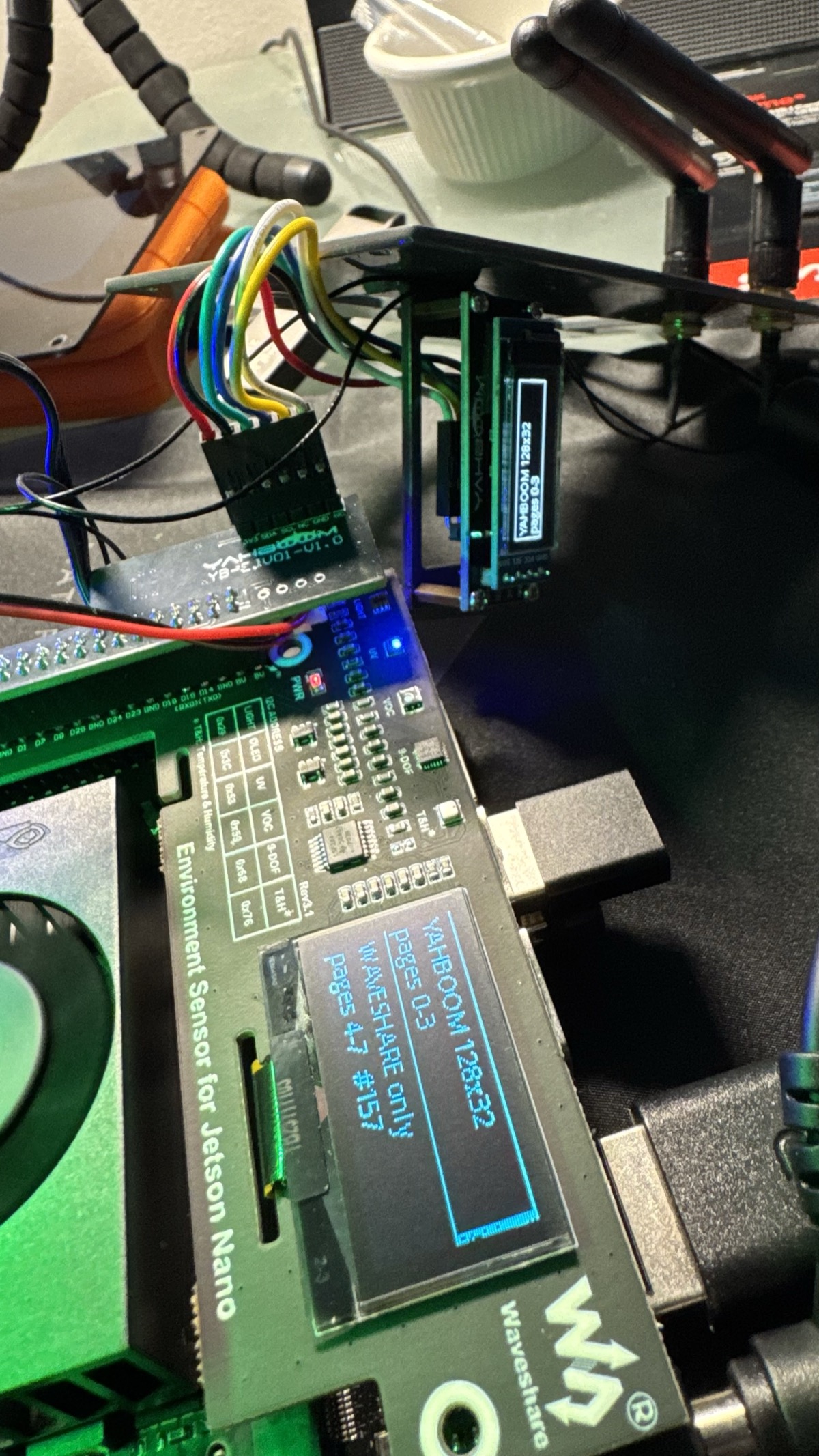
The trick is a quirk of the SSD1306. Its die carries a full 128×64 of display RAM, but the Yahboom glass is only 128×32 driven at multiplex 32 — so only pages 0–3 are ever scanned out, and pages 4–7 are real RAM that is never displayed. The SH1106 shows all 8 pages. So a write aimed at pages 4–7 lands on the Waveshare alone:
| Pages | Yahboom 128×32 | Waveshare 128×64 |
|---|---|---|
| 0–3 | visible | visible (top half) |
| 4–7 | absorbed, never scanned | visible (bottom half) |
OLED_RST is what makes the setup possible — the same pin from the bug above, used on purpose. The two controllers need different multiplex settings, and that command reaches both, so the SH1106 is held in reset (dropped off the bus entirely) while the SSD1306 is configured, then woken with a command set the SSD1306 either ignores or already agrees with. One trap: the SH1106’s display column 0 is RAM column 2 and the SSD1306’s is not, so content has to stay within columns 0–125 or the SH1106 shifts and the SSD1306 wraps.
It isn’t full independence — pages 0–3 are physically shared, so the Yahboom’s content also appears on the Waveshare’s top half; only the Waveshare’s bottom half is truly its own. That’s the ceiling for this hardware without more work, and the clean fixes are all still on the table: 0x3d is free on bus 7, and i2c-0 (header pins 27/28) carries only the ID EEPROMs, so moving one panel to 0x3d via its SA0 strap, jumpering one to i2c-0, or adding a TCA9548A mux would give each panel its own space.
The reset pin was the whole story — first as the bug, then as the tool. A tristated PADCTL default held one panel dark and looked exactly like two DOA boards; the same OLED_RST, driven deliberately, is what lets two same-address OLEDs share one bus and still render different content. Before you RMA an I2C device that NACKs, check whether its reset pin is actually driving.
The devmem fix doesn’t survive a reboot. 0x0243d010 returns to 0x55 on every boot, so the panel is dark again until the write is repeated — and it now takes down the whole dual-display setup, not just the one panel. Making it stick wants either a systemd unit that runs before anything touches the display, or a proper device-tree pinmux change. That’s the one piece of this still open.
What’s next
The build isn’t done. The direction it’s going:
-
Wire the inference into a full router flow. Hack #3 proves the services work — three front doors, all measured. What’s left is assembling them into an end-to-end
NvidiaNanoAIEFM class and router flow, with the Jetson acting as the front door to its own AI services: a XIAO sensor on the LAN POSTs an image to the Jetson’s:8090endpoint and gets a real classification back, not a fire-and-forget ack. The round-trip primitive is proven (front door 3); turning it into an EFM-managed flow is the piece still to build. - Environment data into the flow. The Waveshare sensors read fine now (Hack #4), so this is the wiring job it always should have been: BME280 / TSL2591 / LTR390 / ICM20948 / SGP40 into a MiNiFi Python processor, producing readings to Kafka alongside everything else — the Jetson reporting its own room conditions to the same stack it manages flows from.
- A buzzer and more I2C peripherals on the header for physical alerts driven by flow conditions.
-
Robotics and messaging. App-to-robot messaging over Telegram, a robot camera streamed to Twitch, live-streaming robots — the
streamChatHTTP-to-display pattern already proves the shape: an HTTP endpoint that makes the physical device do something. - Metrics and analytics. System + processor + model metrics from the edge agent into the Prometheus instance inside the CSO stack, the same way the enterprise integration post does it for the cluster.
-
Bigger local models. MobileNet classification runs on the box today (Hack #3). The
llamacppextension is already staged for the step up to a local LLM, and the natural ceiling is a real local-AI workstation (an NVIDIA DGX Spark class box) for the heavy inference, with the Jetson as the always-on edge node in front of it.
What NOT to do — the traps in one place
-
Don’t persist a display process with a bare
&. It survives until the next reboot/logout, then vanishes with no error. Usesetsid, then a systemd unit. -
Don’t assume a blank OLED is dead hardware before checking whether the right process is running and whether the address ACKs (
i2cdetect -y -r 7). And don’t stop at a hard NACK either: the Waveshare OLED NACKed on every driver and looked DOA across two boards, but the reset pin was tristated at the pad the whole time. On a Jetson/Orin, read the reset pin’s PADCTL register withdevmembefore you RMA anything. -
Don’t copy a
ListenHTTPconfig withBuffer Size > 1onto an endpoint that gets single requests — MiNiFi drops the request until the buffer fills. -
Don’t run the agent as root against a user’s desktop session. Set
User=to the desktop uid, and fix the log/state dir ownership afterward. -
Don’t block inside
ExecuteScript— its thread is shared with the whole flow. Background anything that waits. -
Don’t force fullscreen with
wmctrland expect Esc to undo it — usewmctrl ... -b remove,fullscreen. -
Don’t
import tensorrtinside anExecuteScript. The script is re-read every trigger, so the engine can’t stay resident and you pay deserialization per request. Hold it in a resident daemon and POST to it. -
Don’t reach for torch or pycuda on a Jetson just to get device memory.
torchon PyPI for aarch64/py3.12 is a 427 MB generic build with no Orin CUDA validation, andonnxruntime-gpuhas no matching distribution at all.ctypesagainstlibcudartis already installed and is four functions. -
Don’t commit the
.engine. It’s bound to this exact GPU and TensorRT version. Commit thetrtexecline that builds it instead. -
Don’t trust
ListenHTTP buffer is NOT full 1/1 ... was dropped. Measured 20/20 delivered while it fired on every one. Count at the far end before believing it. -
Don’t leave
InvokeHTTP’s timeouts at the framework default when the target is a local daemon answering in milliseconds — 15 s of default socket-read timeout is 15 s the caller hangs on a failure that was knowable immediately.
Terminal History
The recipe above is the clean path. Here’s the real trail off the device — the actual commands, in roughly the order I ran them, wrong turns and all. Every path, port, and bus number is live.
# --- CubeNano OLED: is the panel even there? ---
i2cdetect -y -r 7                                 # 0x3c ack = SSD1306 present on bus 7
python3 ~/CubeNano/oled.py debug                  # init prints for the stats loop
python3 ~/CubeNano/oled.py clear                  # blank it

# --- the CORDY strobe, and why it kept vanishing on reboot ---
python3 oled_strobe.py &                          # <- the mistake: bare & dies with the shell on reboot
# after a glibc-upgrade reboot the stats screen came back, not the strobe. ruled out hardware first:
i2cdetect -y -r 7                                 # 0x3c still acks -> panel/bus fine, it was the process
pkill -f "python3 /home/tunastreet/CubeNano/oled.py"
cd ~/CubeNano
setsid nohup python3 -u oled_strobe.py > /tmp/oled_strobe.log 2>&1 < /dev/null &   # setsid = survives the shell
# real fix: give the strobe its own unit, retire the stats one (sudo scripted - no TTY for the password)
bash ~/CubeNano/install_cordy_oled_service.sh
systemctl is-active cordy_oled.service ; systemctl is-enabled cordy_oled.service

# --- Matrix screensaver (systemd USER service, not root) ---
systemctl --user status lofi-idle-watcher.service
systemctl --user restart lofi-idle-watcher.service    # after editing the html or IDLE_THRESHOLD_MS

# --- MiNiFi C++ agent health ---
systemctl status minifi --no-pager
tail -f /home/tunastreet/nifi-minifi-cpp-1.26.02/logs/minifi-app.log | grep -i "heartbeat\|kafka"
# EFM + Kafka live on the Windows desktop across the LAN - check the ports, no nc needed:
timeout 3 bash -c "cat < /dev/null > /dev/tcp/192.168.1.121/10090" && echo open || echo closed   # EFM
timeout 3 bash -c "cat < /dev/null > /dev/tcp/192.168.1.121/31623" && echo open || echo closed   # Kafka bootstrap
# note: a burst of Kafka "Connection refused" right after a remote restart is NOT an auth problem - it settles in ~15-20 min

# --- native Prometheus publisher on the edge (port 9936 on the Nano itself) ---
ss -tlnp | grep 9936
curl -s http://127.0.0.1:9936/metrics | wc -l     # 204 lines = publisher up
sudo systemctl restart minifi                     # only reliable apply path - needs the interactive sudo password

# --- streamChat: HTTP -> Chromium -> Twitch on the physical display ---
sudo apt-get install -y xdotool                   # only wmctrl was installed; the fullscreen fix needs both
curl -X POST http://localhost:8081/streamChatListener -d '{"streamer":"xqc"}'
ps -ef | grep chromium                            # confirm it launched as tunastreet, not root
wmctrl -l                                          # find the "<name> - Twitch - Chromium" window
wmctrl -r "xQc - Twitch - Chromium" -b add,fullscreen
wmctrl -r "xQc - Twitch - Chromium" -b remove,fullscreen   # <- ESCAPE HATCH: Esc/F11 won't undo a wmctrl fullscreen

# --- real GPU inference: build the engine, stand up the daemon, hit all 3 front doors ---
python3 -c "import tensorrt, numpy, cv2; print(tensorrt.__version__)"   # 10.16.2.10 - all 3 already installed, no pip needed
trtexec --onnx=mobilenetv2-12.onnx --saveEngine=mobilenetv2.fp16.engine --fp16   # ~2 min on the Orin, 674 qps
systemctl --user enable --now trt-infer            # resident daemon on 127.0.0.1:5910, no root
curl -s http://127.0.0.1:5910/health               # {"ok": true, ...}
systemctl --user restart trt-infer                 # reload the model - agent (pid 2616) never notices
# front door 1 (C++ ExecuteScript -> Kafka): flipped Script File -3.py -> -4.py in EFM, validate+publish, hot-reloaded
tail -f logs/minifi-app.log | grep -i "reload\|ListenHTTP"
# NOTE: "ListenHTTP buffer is NOT full 1/1 ... was dropped" fires on EVERY post but 20/20 were classified - the warning lies
# front door 3 (Java agent, real answer back): no JRE on the box at all - agent had never run
which java || sudo apt install -y openjdk-21-jre-headless   # 3 pkgs, needs the interactive sudo password
cd ~/minifi-java-nano/minifi-2.24.08.0-19 && ./bin/minifi.sh start   # up in 4.9s
curl --data-binary @dog-640.jpg -H "Content-Type: application/octet-stream" http://127.0.0.1:8090/classify   # Samoyed 0.72, HTTP 200
curl --data-binary "definitely not an image" http://127.0.0.1:8090/classify   # HTTP 502 in 0.028s - returns, doesn't hang

# --- Waveshare env sensor: the OLED that "never ACKed" was held in reset ---
i2cdetect -y -r 7                                  # sensors at 0x29/0x53/0x68/0x76 answer; 0x3c NACKs every time
sudo apt-get install -y busybox
sudo busybox devmem 0x0243d010                     # OLED_RST pad (BCM24/PY.03): reads 0x00000055 = TRISTATE + pull-down
sudo busybox devmem 0x0243d010 w 0x000             # release the pad -> reset goes high
i2cdetect -y -r 7                                  # 0x3c now ACKs and stays -> the panel lights
python3 test.py                                    # full sensor loop, OLED at 0x3c, no "Continuing without OLED display"
sudo systemctl disable --now cordy_oled.service    # stop the CORDY strobe from fighting for 0x3c on bus 7
# both panels at once: SSD1306 128x32 only scans pages 0-3, so a write to pages 4-7 lands on the Waveshare alone
Appendix
The reusable operational pieces, grouped by purpose. These are the “your exact command” forms — copy-paste ready.
1. Install the CORDY strobe as a service, retire the stats display
sudo systemctl disable --now yahboom_oled.service
pkill -f oled_strobe.py
sudo cp /home/tunastreet/CubeNano/cordy_oled.service /etc/systemd/system/cordy_oled.service
sudo systemctl daemon-reload
sudo systemctl enable --now cordy_oled.service
Flip back to the stats display:
sudo systemctl disable --now cordy_oled.service
sudo systemctl enable --now yahboom_oled.service
2. MiNiFi agent service control
# minifi.sh (preferred) — both the script and systemctl work
sudo /home/tunastreet/nifi-minifi-cpp-1.26.02/bin/minifi.sh start
sudo /home/tunastreet/nifi-minifi-cpp-1.26.02/bin/minifi.sh stop
sudo /home/tunastreet/nifi-minifi-cpp-1.26.02/bin/minifi.sh restart
sudo /home/tunastreet/nifi-minifi-cpp-1.26.02/bin/minifi.sh status

sudo systemctl restart minifi        # the only reliable apply-a-config-change path
systemctl status minifi --no-pager
3. Full clean reinstall of the MiNiFi agent
# remove completely
sudo pkill -9 minifi
sudo systemctl stop minifi 2>/dev/null
sudo systemctl disable minifi 2>/dev/null
sudo rm -f /usr/local/lib/systemd/system/minifi.service
sudo systemctl daemon-reload
sudo rm -rf /home/tunastreet/nifi-minifi-cpp-1.26.02
rm -rf ~/.cache/minifi ~/.config/minifi ~/.local/share/minifi
sudo rm -rf /var/lib/minifi 2>/dev/null

# reinstall (after re-extracting the tarball to the same path)
sudo /home/tunastreet/nifi-minifi-cpp-1.26.02/bin/minifi.sh install

# run as the desktop user (uid 1000), not root — add `User=tunastreet` to the unit, then fix ownership
sudo chown -R tunastreet:tunastreet /home/tunastreet/nifi-minifi-cpp-1.26.02
sudo systemctl daemon-reload
sudo systemctl restart minifi
4. Native Prometheus publisher on the edge agent
conf/minifi.properties.d/95-metrics.properties (drop-in — don’t edit minifi.properties directly):
nifi.metrics.publisher.agent.identifier=4ca82a0d-8e04-4ede-b59d-379de1495f2b
nifi.metrics.publisher.class=PrometheusMetricsPublisher
nifi.metrics.publisher.PrometheusMetricsPublisher.port=9936
nifi.metrics.publisher.metrics=QueueMetrics,RepositoryMetrics,DeviceInfoNode,FlowInformation
sudo systemctl restart minifi
ss -tlnp | grep 9936
curl -s http://127.0.0.1:9936/metrics | wc -l
5. Trigger streamChat manually, and the fullscreen escape hatch
curl -X POST http://localhost:8081/streamChatListener -d '{"streamer":"xqc"}'
wmctrl -l                                                     # find the window title
wmctrl -r "xQc - Twitch - Chromium" -b add,fullscreen         # force it fullscreen
wmctrl -r "xQc - Twitch - Chromium" -b remove,fullscreen      # undo — Esc/F11 will NOT
6. Real GPU inference — build the engine, run the daemon, test all three doors
# build the FP16 engine on the box (bound to this GPU + TRT version, kept out of git)
cd ~/trt-infer/models
curl -sSL -o mobilenetv2-12.onnx \
  https://github.com/onnx/models/raw/main/validated/vision/classification/mobilenet/model/mobilenetv2-12.onnx
trtexec --onnx=mobilenetv2-12.onnx --saveEngine=mobilenetv2.fp16.engine --fp16

# install the resident daemon as a user service (no root; this box runs a lingering user manager)
cp files/trt_infer_server.py ~/BrainShare/files/
cp files/trt-infer.service ~/.config/systemd/user/
systemctl --user daemon-reload
systemctl --user enable --now trt-infer
curl -s http://127.0.0.1:5910/health

# reload the model without touching MiNiFi
systemctl --user restart trt-infer

# front door 3 — Java agent round-trip (a real classification in the response body)
curl --data-binary @dog-640.jpg -H "Content-Type: application/octet-stream" \
     http://127.0.0.1:8090/classify
7. Waveshare env-sensor bring-up — release the OLED reset, then light both panels
# release the tristated OLED_RST pad so the SH1106 answers on 0x3c (repeat after every reboot)
sudo apt-get install -y busybox
sudo busybox devmem 0x0243d010          # confirm it reads 0x00000055 first
sudo busybox devmem 0x0243d010 w 0x000
i2cdetect -y -r 7                        # 0x3c now present alongside 0x29/0x53/0x68/0x76

# stop the CORDY strobe from grabbing the same address on bus 7
sudo systemctl disable --now cordy_oled.service

# run the full sensor loop (do the devmem by hand first — test.py's own sudo no-ops without a tty)
python3 test.py
NVIDIA Jetson developer resources
- NVIDIA Jetson Orin family — the Orin Nano Super Developer Kit specs live here
- JetPack SDK (Linux for Tegra / L4T)
- NVIDIA Jetson developer forums and Jetson developer resources
Companion Posts
- How to AI with NiFi and Python — Custom Python Processor success with AI with examples
- Edge to AI For Dummies — Go grab a copy of this and give it a read
- Cloudera Edge Flow Manager on Kubernetes — the deep enterprise integration: persisted EFM on Kubernetes next to the full CSO stack, model execution inside MiNiFi, metrics into Prometheus.
Hacking The Jetson
If you would like a deeper dive, hands on experience, demos, or are interested in speaking with me further about Hacking The Jetson please reach out to schedule a discussion.